Not everyone has a powerful editing computer. Not everyone wants to install heavy software, learn a complicated timeline or pay for a big subscription just to make a few social media videos.
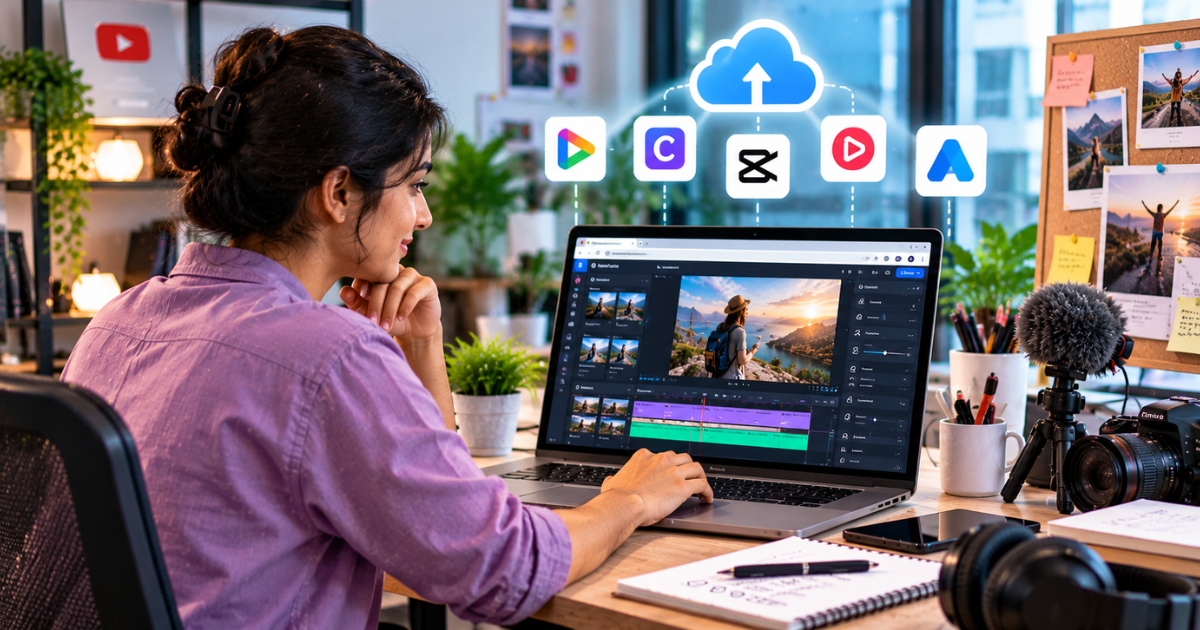
That's exactly why online video editors have become so popular. Open a browser tab, upload your clips, edit and export. No installation. No hardware worries. And because many of them run in the cloud, you can start editing on your office laptop and finish on your home computer.
For small businesses, marketers, students and social media managers, browser-based video editors are often the fastest way to create good-looking content. In this guide, I'll walk you through the best online video editors that work in your browser, what each one does best and how to pick the right one for your needs.
Why Choose a Browser-Based Video Editor?
Online video editors have improved dramatically in the last few years. Here's why so many people now prefer them:
- No installation: Works on almost any computer with a modern browser.
- Low hardware requirements: Much of the heavy processing happens on the tool's servers.
- Easy collaboration: Share projects with teammates and clients, just like a Google Doc.
- Templates: Ready-made designs for Reels, Shorts, ads and stories.
- Built-in assets: Stock footage, music, fonts and graphics in one place.
- AI features: Auto captions, background removal, voiceovers and smart resizing.
- Access anywhere: Your projects live in the cloud, not on a single device.
The trade-off is that browser editors usually aren't as powerful as professional desktop software for long, complex projects. They also depend on a stable internet connection. But for most marketing videos under a few minutes, they're more than enough.
1. Canva Video Editor
Most people know Canva for graphics, but its video editor has become one of the most popular tools for social media content. If your team already uses Canva for posts and presentations, adding video is a natural step.
What it does well:
- Thousands of video templates for Reels, Shorts, ads and stories
- A huge library of stock video, music, graphics and fonts
- Brand Kit to keep colours, logos and fonts consistent
- AI features such as background removal, auto captions and Magic tools
- Easy resizing for different platforms
Best for: Small businesses, social media managers and non-designers who want polished videos fast.
Keep in mind: Canva's video timeline is simpler than dedicated editors, so detailed edits can feel limited.
2. Microsoft Clipchamp
Clipchamp is Microsoft's video editor. It's built into Windows and also works in the browser, making it easy to access for millions of users.
What it does well:
- A clean, beginner-friendly interface with a proper timeline
- Auto captions and AI text-to-speech voiceovers
- Templates, stock media and green screen effects
- Integration with Microsoft 365 and OneDrive
- A generous free plan for basic editing
Best for: Beginners, students, teachers and Windows users who want a simple but capable editor.
3. Kapwing
Kapwing is designed for content teams and creators who make a lot of short-form video. It has strong collaboration features and plenty of AI tools that speed up repetitive tasks.
What it does well:
- Real-time collaboration on projects
- Automatic subtitles and translation
- Smart cut to remove silences automatically
- Tools for repurposing long videos into short clips
- Easy resizing and templates for every social platform
Best for: Content teams, agencies and creators who produce high volumes of social video.
4. VEED
VEED is a popular browser-based editor focused on making video creation fast and accessible. It's especially loved for its subtitle tools.
What it does well:
- Highly accurate auto subtitles with stylish caption designs
- Screen and webcam recording directly in the browser
- AI avatars, voiceovers and translation
- Clean audio and background noise removal
- Templates for marketing and social content
Best for: Marketers, educators and creators who want captioned social videos and tutorials quickly.
5. Adobe Express
Adobe Express is Adobe's quick-creation tool for social media content. It brings some of Adobe's professional technology into a simple, browser-friendly package.
What it does well:
- Easy video templates for social media
- Access to Adobe Stock assets and Adobe Fonts
- AI features powered by Adobe Firefly
- Quick actions like resizing, trimming and background removal
- Smooth connection with other Adobe apps
Best for: Creators and small businesses who want Adobe-quality design without a learning curve.
6. WeVideo
WeVideo has been around for a long time and is popular in schools and businesses. It offers a fuller timeline experience than many browser editors.
What it does well:
- Multi-track timeline editing in the browser
- Green screen, screen recording and voiceover tools
- Collaboration features for teams and classrooms
- Stock media library
Best for: Educators, students and teams who need slightly more advanced editing in the cloud.
7. Descript (Web App)
Descript is best known as a desktop app, but it also offers a browser version. Its text-based editing approach, where you edit the transcript to edit the video, is ideal for talking-head content.
What it does well:
- Edit video by editing text
- Remove filler words automatically
- Studio Sound for one-click audio cleanup
- Create clips and captions for social media
Best for: Podcasters, course creators and anyone making spoken-word videos.
8. Flixier
Flixier is a cloud-powered editor known for fast rendering, since processing happens on its servers rather than your computer.
What it does well:
- Quick cloud rendering, even on basic laptops
- Collaboration and sharing features
- Auto subtitles and translation
Best for: Users with older or low-powered computers who still need decent editing speed.
Quick Comparison: Which Online Editor Is Right for You?
- Best for social media templates: Canva
- Best free option for beginners: Clipchamp
- Best for content teams and repurposing: Kapwing
- Best for subtitles: VEED
- Best Adobe-style design: Adobe Express
- Best fuller timeline in the browser: WeVideo
- Best for talking-head videos: Descript
- Best for low-powered computers: Flixier
Most of these tools offer free plans with limits on export quality, watermarks or storage. Features and pricing change often, so check each tool's official website for current details. For a broader set of software that makes marketing easier, explore this list of digital marketing tools.
Tips for Creating Better Videos with Online Editors
The tool makes editing easier, but these habits make your videos better:
- Start with a template, then make it your own. Change colours, fonts and layouts so your video doesn't look like everyone else's.
- Design for mobile first. Most social video is watched on phones. Use vertical formats and large, readable text.
- Always add captions. Many viewers scroll with the sound off.
- Keep it short. For ads and Reels, get your message across in the first few seconds.
- Stay on brand. Use the same fonts, colours and logo placement across every video.
- Use high-quality source footage. No editor can fully fix blurry, shaky clips.
- Check your internet connection before long uploads and exports.
Before publishing, run through a quick quality check: spelling in captions, audio levels, correct aspect ratio and a clear call to action. These free social media and launch checklists can help you build a consistent review habit.
Using Online Video Editors for Ads
Browser-based editors are perfect for creating quick video ad variations. Because you can resize, swap text and change hooks in minutes, they make A/B testing much easier. You can create five versions of the same ad with different opening lines and let the data tell you which one works best.
This is exactly how many performance marketers work today: produce fast, test often and scale what performs. If you want to learn how to plan, create and optimise video ads on Google and Meta, a hands-on performance marketing course covers campaign setup, creative testing and reporting in detail.
Are Online Video Editors Good Enough for Professionals?
For many professional marketing tasks, yes. Social media managers, agencies and in-house marketing teams use tools like Canva, Kapwing and VEED every day to produce Reels, ads and promotional clips.
However, for long-form YouTube videos, cinematic projects, heavy colour grading or complex effects, desktop software like DaVinci Resolve or Premiere Pro is still the better choice. Many professionals use both: a browser editor for quick social content and desktop software for bigger projects.
Final Thoughts
Online video editors have made video creation accessible to everyone. You no longer need an expensive computer or years of training to create content that looks professional.
If you're a small business owner, start with Canva or Clipchamp. If you run social media for clients, Kapwing or VEED will save you hours every week. And if you mostly record talking-head videos, Descript is hard to beat.
Try two or three free plans, make the same short video in each and see which one feels most natural. The best editor is the one that helps you publish consistently, because in video marketing, consistency wins.